Olympus FE-300 Bedienungsanleitung Seite 1
Stöbern Sie online oder laden Sie Bedienungsanleitung nach Kameras Olympus FE-300 herunter. Olympus FE-300 User Manual Benutzerhandbuch
- Seite / 64
- Inhaltsverzeichnis
- LESEZEICHEN


- FE-300/X-830 1
- Quick Start Guide 2
- Attach the strap 3
- Prepare the camera 4
- Turn the camera on 6
- Set the date and time 7
- Take a picture 9
- Review your pictures 10
- Button operations 11
- Menu operations 17
- Using the menus 18
- Shooting mode menu K 18
- Playback mode menu q 22
- SETUP menus 26
- PC / CUSTOM PRINT 29
- EASY PRINT START 29
- Printing pictures 30
- Print settings (DPOF) 32
- Using OLYMPUS Master 35
- OLYMPUS Master 40
- Shooting tips and information 42
- Shooting tips 43
- Focusing on the subject 43
- Using a new card 45
- Lamp indicators 46
- Change the monitor setting 47
- Appendix 50
- Use of the accessories 51
- Safety Precautions 52
- SPECIFICATIONS 58
- Names of Parts 59
- (Shooting Mode 60
- (Playback Mode 61
- VS169601 64
Inhaltsverzeichnis
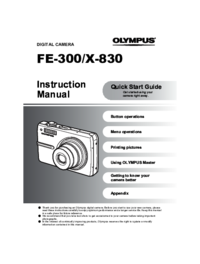
DIGITAL CAMERAAdvanced ManualGetting to know your camera betterQuick Start GuideGet started using your camera right away.Button operationsMenu operati
10 ENQuick Start GuideReview your picturesa. Press the q button.a. Press the X& and Y# buttons to display the picture you want to erase.b. Press t
EN 11Button operationsButton operationsShooting still picturesSet the mode dial to a setting other than n, and lightly press the shutter button (halfw
Button operations12 ENShooting mode is selected.This function is used to set the camera to turn on in shooting mode when K is pressed with the camera
Button operationsEN 13[S SMILE SHOT]• When the camera detects a smiling face in shooting standby mode, 3 frames are taken in high speed sequential sho
Button operations14 ENShooting mode: Changing picture brightnessPress OF/< in shooting mode, select a picture in your desired brightness with XY, a
Button operationsEN 15Press in shooting mode. The monitor becomes brighter. If there is no operation for 10 seconds, the previous brightness resumes
Button operations16 ENPlayback mode: Switching the picture display1 243[ININ]40004000×300030000.00.0HQHQ[ININ]F2.8 1/1000F2.8 1/1000’07.12.10 12:30
EN 17Menu operationsMenu operationsPress m to display the top menu on the monitor.• The contents displayed on the top menu differ according to the mod
Menu operations18 ENThis explains how to use the menus with the [8] (warning sound) setting as an example.1 Set the mode dial to a setting other than
Menu operationsEN 19• Some functions are not available according to the selected mode.g “Functions available in shooting modes and scenes” (P. 49)g “S
2 ENContentsTest out the functions of the camera buttons by following along with the illustrations.Learn how to print pictures you have taken.Learn ho
Menu operations20 ENThe scene selection screen displays sample images and the shooting mode to best suit the situation. This can be set only when the
Menu operationsEN 21When activated [ON], the camera will record about 4 seconds of audio after the picture is taken.When recording, aim the camera mic
Menu operations22 ENPress to start the slideshow.• Only the first frame of each movie is displayed.• To cancel the slideshow, press .Select [MOVIE
Menu operationsEN 23Operations during pause• To resume the movie, press .• To cancel the playback of the movie in the middle of it or during pause, p
Menu operations24 ENErasing pictures registered in MY FAVORITE• Use the arrow pad to select the picture to be erased, and press S. Select [YES], and p
Menu operationsEN 25Protected pictures cannot be erased using [ERASE], [SEL. IMAGE] or [ALL ERASE], but they are all erased by formatting.• Select the
Menu operations26 EN• Use the arrow pad to select the picture, and press to mark R on your selection.• To cancel the selection, press again.• When
Menu operationsEN 27You can select a language for on-screen display. Available languages vary depending on where you purchased this camera.You can add
Menu operations28 ENThe date and time is saved with each image, and is used in the file name.If the date and time are not set, the [X] screen is displ
EN 29Printing picturesPrinting picturesBy connecting the camera to a PictBridge-compatible printer, you can print out pictures directly. Select the pi
EN 3Quick Start GuideGather these items (box contents)( Pull the strap tight so that it does not come loose.Digital Camera Strap Lithium Ion Battery(L
Printing pictures30 EN• When printing is finished, the picture selection screen is displayed. To print another picture, press XY to select a picture,
Printing picturesEN 31Note• If the [PRINTPAPER] screen is not displayed, [SIZE], [BORDERLESS] and [PICS/SHEET] are set to the standard.Press XY to sel
Printing pictures32 EN4 Select [PRINT], and press .• Printing starts.• When printing is finished, the [PRINT MODE SELECT] screen is displayed.To canc
Printing picturesEN 33Printing using a DPOF-compatible printer.Printing is possible directly from a card containing print reservation data, without us
Printing pictures34 ENReserves all the pictures stored on the card. The number of prints is set at one print per picture.1 Press m in the playback mod
EN 35Using OLYMPUS MasterUsing OLYMPUS MasterUsing the USB cable provided with your camera, you can connect the camera and computer and download (tran
36 ENUsing OLYMPUS MasterBefore installing the OLYMPUS Master software, please confirm that your computer is compatible with the following system requ
EN 37Using OLYMPUS MasterWindows1 Insert the CD-ROM into the CD-ROM drive.• The OLYMPUS Master setup screen is displayed.• If the screen is not displa
38 ENUsing OLYMPUS Master1 Make sure the camera is turned off.• The monitor is off.• The lens is retracted.2 Connect the multi-connector on the camera
EN 39Using OLYMPUS Master• The browse window is displayed.• When OLYMPUS Master is started up for the first time after installation, the OLYMPUS Maste
4 ENQuick Start GuidePrepare the cameraa. Charge the battery.( Battery comes partially charged.b. Insert the battery and an xD-Picture Card (optional)
40 ENUsing OLYMPUS MasterMacintosh1 The trash icon changes to the eject icon when the “Untitled” or “NO_NAME” icon on the desktop is dragged. Drag and
EN 41Using OLYMPUS MasterNote• If your computer is running Windows Vista, you can select [PC] in Step 3 on P. 38, press Y, and select [MTP] to use Win
42 ENGetting to know your camera betterGetting to know your camera betterThe battery is not charged• Charge the battery with the charger.The battery i
EN 43Getting to know your camera betterThe camera has been used in the same condition from the time of purchase• No date and time have been set in the
44 ENGetting to know your camera betterHold the camera correctly and press the shutter button gently to shoot the picture. In addition, blurring is re
EN 45Getting to know your camera betterThere are two ways to record the pictures you take with this camera.Recording pictures to the internal memory•
46 ENGetting to know your camera betterThis camera uses several lamps to indicate the camera status.• Performing any of the following operations when
EN 47Getting to know your camera better• To return the changed shooting settings to default settings while shooting, set [RESET] to [YES].g “RESET Cha
48 ENGetting to know your camera betterWhen you get an error message on the camera...Monitor indication Possible cause Corrective actionqCARD ERRORThe
EN 49Getting to know your camera betterSome functions cannot be set in certain shooting modes. For more details, refer to the table below.Functions av
EN 5Prepare the cameraQuick Start Guide( With this camera, you can take pictures without inserting the optional xD-Picture Card™ (hereinafter referred
50 ENAppendixAppendixExterior:• Wipe gently with a soft cloth. If the camera is very dirty, soak the cloth in mild soapy water and wring well. Wipe th
EN 51AppendixPictures can be recorded on the optional card.The internal memory and card are the camera’s media for recording pictures, similar to film
52 ENAppendixRead All Instructions — Before you use the product, read all operating instructions. Save all manuals and documentation for future refere
EN 53AppendixWARNING( Do not use the camera near flammable or explosive gases.( Do not use the flash and LED on people (infants, small children, etc.)
54 ENAppendix• To prevent causing battery leaks or damaging their terminals, carefully follow all instructions regarding the use of batteries. Never a
EN 55Appendix• Always charge a battery when using it for the first time, or if it has not been used for a long period.• When operating the camera with
56 ENAppendix• Radio and Television InterferenceChanges or modifications not expressly approved by the manufacturer may void the user’s authority to o
EN 57Appendix(a) Any defect that occurs due to mishandling (such as an operation performed that is not mentioned in the Handling Care or other section
58 ENAppendixSPECIFICATIONS(CameraProduct type : Digital camera (for shooting and displaying)Recording systemStill pictures : Digital recording, JPEG
EN 59AppendixNames of PartsCameraFlashgP. 14Zoom levergP. 15o buttongP. 11LensMode dialgP. 12OF/< button (Exposure Compensation/Print)gP. 14X&
6 ENQuick Start GuideTurn the camera onThis explains how to turn on the camera in shooting mode.a. Set the mode dial to h.Still picture shooting modes
60 ENAppendix(Shooting ModeMonitor Symbols & IconsItem Indications Ref. Page1 Battery check e = full power, f = low power –2 Flash standbyCamera m
EN 61Appendix(Playback ModeItem Indications Ref. Page1 Battery check e = full power, f = low power –2 Silent mode U P. 213 Aperture value F2.8, etc. P
62 ENIndexK/q... 27h (AUTO)... 6, 12S button (backlight bo
EN 63Monitor brightness adjustment s... 27MOVIE PLAY...
VS169601
EN 7Quick Start GuideSet the date and timea. Press the OF/< and NY buttons to select [Y].• The first two digits of the year are fixed.b. Press the
8 ENSet the date and timeQuick Start Guided. Press the Y# button.e. Press the OF/< and NY buttons to select [D].f. Press the Y# button.g. Press the
EN 9Quick Start GuideTake a picturea. Hold the camera.c. Shoot.Horizontal grip Vertical gripb. Focus.Shutter Button(Press Halfway)HQHQ40004000×3000300
Weitere Dokumente für Kameras Olympus FE-300


Verwandte Produkte und Handbücher für Kameras Olympus FE-300
 (128 Seiten)
(64 Seiten)
(80 Seiten)
(58 Seiten)
(63 Seiten)
(155 Seiten)
(63 Seiten)
(59 Seiten)
(163 Seiten)
(83 Seiten)
(67 Seiten)
(171 Seiten)
(64 Seiten)
(83 Seiten)
(211 Seiten)
(80 Seiten)
(70 Seiten)
(61 Seiten)
(82 Seiten)
(133 Seiten)
(128 Seiten)
(64 Seiten)
(80 Seiten)
(58 Seiten)
(63 Seiten)
(155 Seiten)
(63 Seiten)
(59 Seiten)
(163 Seiten)
(83 Seiten)
(67 Seiten)
(171 Seiten)
(64 Seiten)
(83 Seiten)
(211 Seiten)
(80 Seiten)
(70 Seiten)
(61 Seiten)
(82 Seiten)
(133 Seiten)
© 2020, manymanuals.de. Alle Rechte vorbehalten. | 0.048 s |
 Manymanuals.com
 Manymanuals.de
 Manymanuals.fr
 Manymanuals.it
 Manymanuals.pl
 Manymanuals.cz
 Manymanuals.es
 Manymanuals-pt.com
Kommentare zu diesen Handbüchern